
Is your laptop suddenly slow for no reason? Does a file refuse to delete, with Windows saying it is “in use” but not telling you by what? Task Manager shrugs. This free tool doesn’t. Meet System Informer, the little app power users have quietly trusted for years.
What Is System Informer?
System Informer is a free, powerful, multi-purpose tool that helps you monitor system resources, debug software and detect malware. It is open source, and the project is released under the MIT license. Think of it as Task Manager after years at the gym. github
It runs on Windows 10 and above, in both 32-bit and 64-bit versions.
5 Things It Does That Will Make You Say “Wait, WHAT?”
1. It shows you who is locking your file. You know the “file is open in another program” error? System Informer can tell you which process is holding it, so you can stop guessing.
2. It catches resource hogs red-handed. Live graphs and statistics help you find the runaway process eating your CPU, memory or disk.
3. It reveals hidden network activity. You can see which programs have active network connections and close them if something looks wrong.
4. It watches your disk in real time. You get live information on disk access, so you can see what is hammering your drive.
5. It controls Windows services properly. You can create, edit and control services, which goes well beyond what the basic services.msc window offers.
There is also a deep-dive feature for the nerds. It can show detailed stack traces with kernel-mode, WOW64 and .NET support, which is the kind of thing developers use to debug stubborn software.
How to Install It (3 Easy Ways)
The official download page lists several options. Pick whichever suits you.
Option 1: The installer (recommended). Go to the official site, systeminformer.com, open the Downloads page and grab the Setup file. The site marks the setup file as the recommended option. Run it and follow the prompts. sourceforge
Option 2: The portable version. If you hate installing things, download the “Binaries (Portable)” zip, unzip it and double-click SystemInformer.exe. The project describes the tool as small and portable, with no installation required.
Option 3: One command with winget. Open PowerShell or Command Prompt and type:
winget install --id WinsiderSS.SystemInformer -eThe downloads page also lists a Microsoft Store version if you prefer that route. sourceforge
Pro tip: Only download from the official site or the GitHub project. The official page lists SHA-256 checksums, so you can verify your file before running it.
How to Use It in 5 Minutes
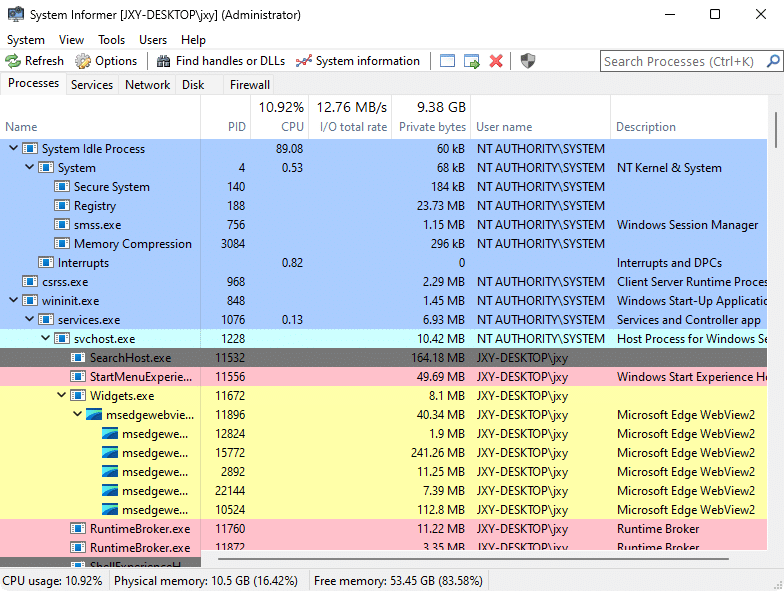
- Open it. You will see a list of every running process, color-highlighted by type, so system, service and suspicious items stand out.
- Sort by CPU or memory. Click the column headers to find the biggest resource hogs fast.
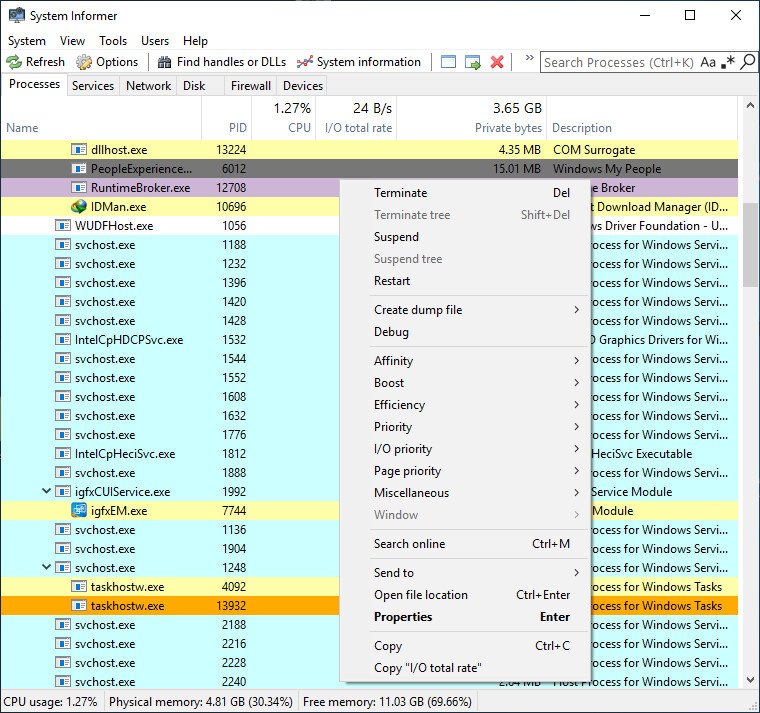
- Double-click any process. A detail window opens with its files, network connections, threads, memory and more.
- Check the Network tab. See which programs are talking to the internet and where they are connecting.
- Find the file locker. Use the Find Handles or DLLs option from the Hacker menu and type the file name. System Informer lists the processes using it, so you can close the right one.
You can usually get more detail by running it as administrator, so right-click and choose “Run as administrator” if you want the full picture.
USB drive trick: If you run it from a USB stick and want your settings to travel with it, create a blank file named SystemInformer.exe.settings.xml in the same folder as the program. System Informer will then save its settings there.
Is It Safe?
It is a fair question, because the app has deep access to your system. The code is fully public on GitHub, where it has thousands of stars. It is also licensed under MIT, so anyone can inspect it. Still, always download from the official sources and compare the checksum.
Summary
System Informer is not flashy, and it won’t promise to “boost your PC 300%”. What it does is show you what your computer is really doing, which is the first step to fixing almost any Windows problem. It is free, portable and open source, so the only real cost is a few minutes of your time. Next time your PC acts up, don’t reboot and hope. Open System Informer and find out who the culprit is.








Cyber Security Researcher. Information security specialist, currently working as risk infrastructure specialist & investigator. He is a cyber-security researcher with over 25 years of experience. He has served with the Intelligence Agency as a Senior Intelligence Officer. He has also worked with Google and Citrix in development of cyber security solutions. He has aided the government and many federal agencies in thwarting many cyber crimes. He has been writing for us in his free time since last 5 years.